Export & Save
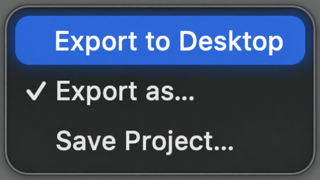
The editor footer’s blue split button runs your preferred save action; the chevron switches between three modes (your choice is remembered):
| Export to Desktop | One click writes a timestamped PNG to your Desktop. |
| Export as… | Choose format (PNG, JPEG, HEIC, TIFF, GIF, BMP, WebP) and location. The format pre-selects to match the source file where possible. |
| Save Project… | Write a native .powerpic file with annotations kept as editable objects. Reopen it via Open…, by double-clicking in Finder, or from History. |
Exports are flattened — image plus baked annotations, at the image’s true pixel size regardless of zoom.
History
Every capture is auto-saved to History (last 10), including your annotations — closing the editor never loses work unless you discard the session (per above). Projects you save or open also appear in History (with a folder badge).
Copy & Discard

Copy puts the flattened result on the clipboard. The trash button discards the capture — it’s removed from History and moved to the macOS Trash, so you can still recover it. It never deletes actual files you may have opened.