App Menu
Click the PowerPic icon in the menu bar to open the app menu — it’s the home for everything outside the editor.
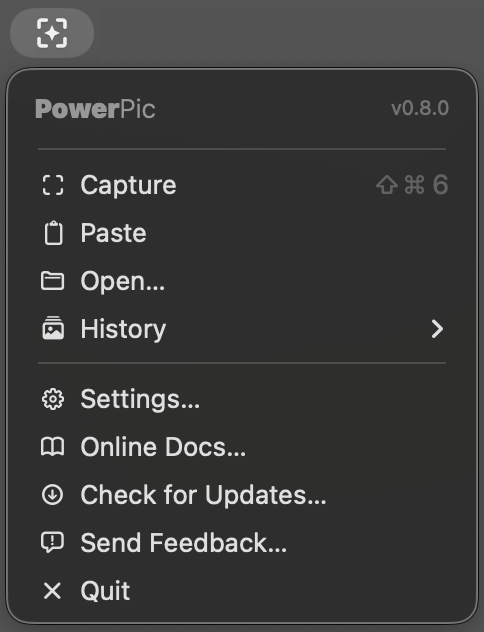
Actions
| Capture | Grab a screen region, or a whole window — press Space to toggle the window mode. |
| Paste | Open an image from the clipboard in the editor. |
| Open… | Open an image file (PNG, JPEG, TIFF, GIF, BMP, WebP), a PDF (specified page), or a .powerpic project. PDFs will be rasterized into an image. Opened files are never modified automatically — only when explicitly exported/saved back. |
| History | Your ten most recent items, newest first — captures and edited drafts (clock badge), .powerpic projects (folder badge), and opened image files (file badge). Click to reopen, ⇧-click to reveal in Finder. Captures are cached locally — click the trash icon to purge (recoverable from the macOS Trash). |
| Settings… | See below… |
| Online Docs… | Opens this site. |
| Check for Updates… | Looks for a newer version right away, and installs it if you accept. PowerPic also checks on its own unless you turn that off in Settings. |
| Send Feedback… | Report a bug or request a feature from inside the app. |
| Quit | Quits PowerPic. Unsaved edits in an open editor are kept as a draft in History. |
Settings
| Launch on startup | Runs PowerPic when you log in. |
| Automatically check for updates | Checks for new versions in the background. On by default. |
| Share anonymous usage data | Sends events on features used, and usage frequency — tied only to a random ID. Never sends your content or other identifying information. |
| Capture shortcut | Record your own combo (default ⌘⇧6), or take over the native ⌘⇧4 (requires Accessibility permission). |
| Remember last style per tool | Restores each tool’s last-used style. |
| Show cursor coordinates | Shows a live X, Y pixel badge over the canvas in Select mode (W × H while drag-lassoing). |
| Close PowerPic after… | Automatically closes the editor after Discard, Copy, Export/Save. |
| Blank canvas color | Fill color when a crop expands past the image. |
| Favorite colors | Eight editable swatches — with a selection, press 1–8 to apply to lines and/or font (with ⇧ to fill). |
| AI providers | Paste your Google Gemini and/or OpenAI API key (each stored in the Keychain). Apple Intelligence needs no key. See AI Assistance. |
| Reset settings… | Restores preferences to defaults and clears saved styles, presets, and AI prompt history. Keeps your History, API keys, login setting, and capture shortcut. |